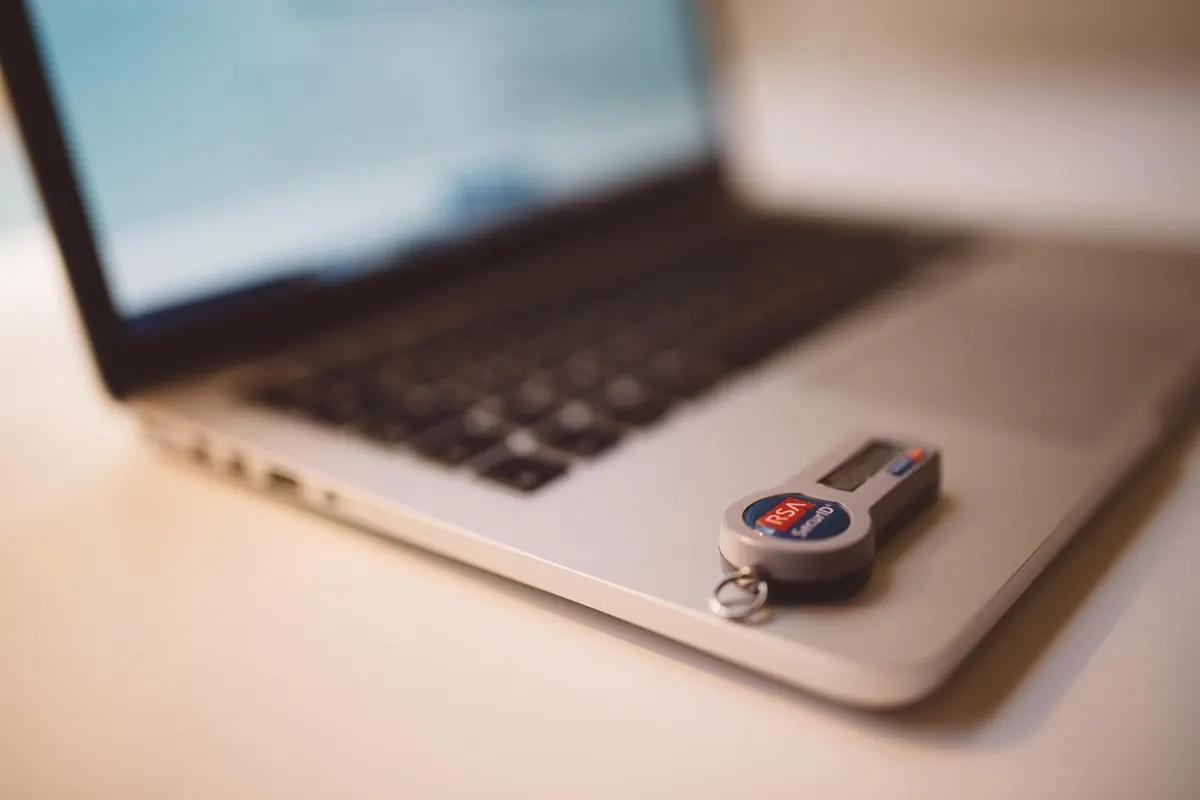
A hardware security key looks like something you would lose in a coat pocket and forget about. It sits on a keyring, collects scratches, and does absolutely nothing until you plug it in — at which point it becomes one of the strongest account protections an ordinary person can buy.
The promise is straightforward. Instead of typing a six-digit code that a convincing phishing page can steal and replay within seconds, you prove who you are with a physical object that has to be present. An attacker on another continent cannot reach into your pocket. Sign-in becomes a tap, not a text message.
The interesting part is whether everyday reality matches that theory. After several weeks of using a FIDO2 key across email, social accounts and a few financial services, here is what held up and what did not.
What a security key actually does
Modern keys speak FIDO2 and WebAuthn, the standards behind passkeys. During registration, the key generates a cryptographic pair that is bound to a specific website's domain. The private half never leaves the device. When you sign in, the site sends a challenge, the key signs it, and the signature is useless anywhere else.
That origin binding is the real advantage. A fake login page on a lookalike domain cannot get a valid signature, because the key knows which site it is talking to. Codes typed by hand have no such protection.
Keys can act as a second factor after your password, or replace the password entirely where a service supports passkeys. Either way, most keys also carry a PIN that lives on the device itself — not on any website — and unlocks it when the service asks for user verification. Fail the PIN enough times and the key locks and resets, wiping the credentials stored on it. Treat that PIN like a bank card PIN.
Setting it up: from unboxing to first login
Setup took about fifteen minutes for the first account, and the fiddly parts were all ordering decisions rather than technical ones. A sequence that avoids most of the pain:
- Check the vendor's companion app for firmware updates if your model supports them.
- Register the key on your primary email account first. Everything else — password resets, banking, work tools — funnels through it.
- Set a PIN when prompted. The key stores it, so you only do this once per device.
- Give the key a clear name in each account, especially if you own more than one.
- Register a second key as a backup before you rely on the first.
- Download and print the recovery codes. Store them somewhere that is not your email inbox.
- Only once both keys work, remove the weaker methods you no longer need.
Step five is the one people skip, and it is the one that produces panicked support emails. A single key is a single point of failure. Buy two identical models so you never have to remember which one is registered where.
Compatibility: where keys work and where they do not
Email and cloud accounts
This is where keys shine. Google, Microsoft and Apple all support hardware keys, and password managers such as Bitwarden and 1Password accept them as a second factor. If your email is protected by a key and a strong password, account takeover attempts largely stop being a realistic threat.
Banking and financial services
Here expectations need managing. Most banks and card issuers still rely on SMS codes or their own app-based approval, and many simply have no option to add a hardware key. Some business and premium accounts in Europe support FIDO2 devices; consumer accounts rarely do. Check your bank's own documentation before assuming anything, and do not remove an existing second factor unless you have confirmed the key works with that institution. This is general security guidance, not financial advice — your bank's published instructions are the authority.
Social and shopping accounts
Coverage is patchy but improving. Google, X and Meta accounts accept security keys, and a growing number of services offer passkeys instead. Retail and entertainment accounts are the weakest link, often limited to SMS or an authenticator app.
A few practical quirks worth knowing:
- Connector type matters. USB-A, USB-C, Lightning and NFC keys are not interchangeable, though dual-connector models exist.
- NFC keys work on most modern phones; you tap the key to the back of the device and confirm.
- Cheap USB hubs and adapters occasionally drop the connection mid-login.
- Some keys limit how many resident credentials they can store, which matters if you intend to use passkeys across dozens of sites.
- Legacy U2F support still matters for older services that have not caught up.
Living with it day to day
The daily experience is better than expected. Signing into a laptop takes about two seconds: insert, tap the metal contact, done. There are no codes to read, no phone to find, and no messages that an intercepted SIM can intercept. It works on planes, in basements without signal, and on a freshly reinstalled browser.
The friction is real but small. The key has to be with you, and if it is on your main keyring, that means carrying it everywhere. Logging into a smart TV, a game console or a borrowed computer is often impossible with a key alone, so a fallback method — a backup key in a drawer, or a phone with an authenticator app — is worth keeping. Some services still insist on a phone number even after you add a key, which defeats much of the point but is outside your control.
The subtle daily risk is complacency. A key stops phishing, not everything. If someone has your password and your recovery codes, or if they can convince your carrier to move your number, the key does not save you. Keep recovery codes offline, keep your account recovery phone number current, and review the devices signed into your accounts occasionally.
What to check before you buy
- Connector and NFC support matched to your phone and laptop.
- Reputation of the vendor and how they handle firmware updates.
- Whether the model supports FIDO2 and legacy U2F.
- How the key handles PIN lockout and resets.
- Whether you can buy two identical units without a premium for the second one.
Extras like biometric readers and rotating one-time-code displays are nice, but they are conveniences layered on the same core standard. A plain key from a reputable brand does the essential job.
A sensible way to start this week
Buy two keys. Register the first on your email account, set the PIN, name it, then repeat with the second key as a backup. Print the recovery codes and put them somewhere physical. Once email is done, add the key to your password manager, then to whichever social accounts offer the option. Leave banking alone for now unless your bank explicitly supports it. Live with the setup for a month before you remove SMS codes from anything important — that adjustment period catches the accounts you forgot about, the old tablet still logged in, and the login flow that quietly refuses to work.
Do that, and the small piece of plastic on your keyring stops being a novelty. It becomes the reason a stolen password is no longer enough.
Photo: Lalmch / Pixabay